Login to Your Minecraft Account: Setup Guide
Step-by-step guide: Correct login via the Microsoft button, avoiding the Demo Mode, and essential security tips for your new account.
In this guide, we’ll explain step-by-step how to log in to your newly purchased Minecraft account from PremiumAlts. Please follow the instructions exactly to avoid common errors like "Demo Mode" or locked accounts.
[VIDEO PLACEHOLDER]
(Insert YouTube video here if available)
1. Credentials and Preparation
Your login data is located in the dashboard in the box "DEINE ACCOUNT DATEN" (Your Account Data).
To avoid confusion, here is an explanation of the fields:
- Email: This is your login address for the Microsoft account.
- MinecraftPassword: This is your password for the login in the Launcher.
- EmailPassword: The password for the email inbox (important if a security code is requested).
- EmailProvider: The website where you can log in to the email inbox (e.g., firstmail.ltd).
Important: Do not confuse the passwords! To start playing, you initially only need the Email and MinecraftPassword.
2. The Login Process in the Launcher
Download the official Minecraft Launcher first. When you start it, the process is now very simple.
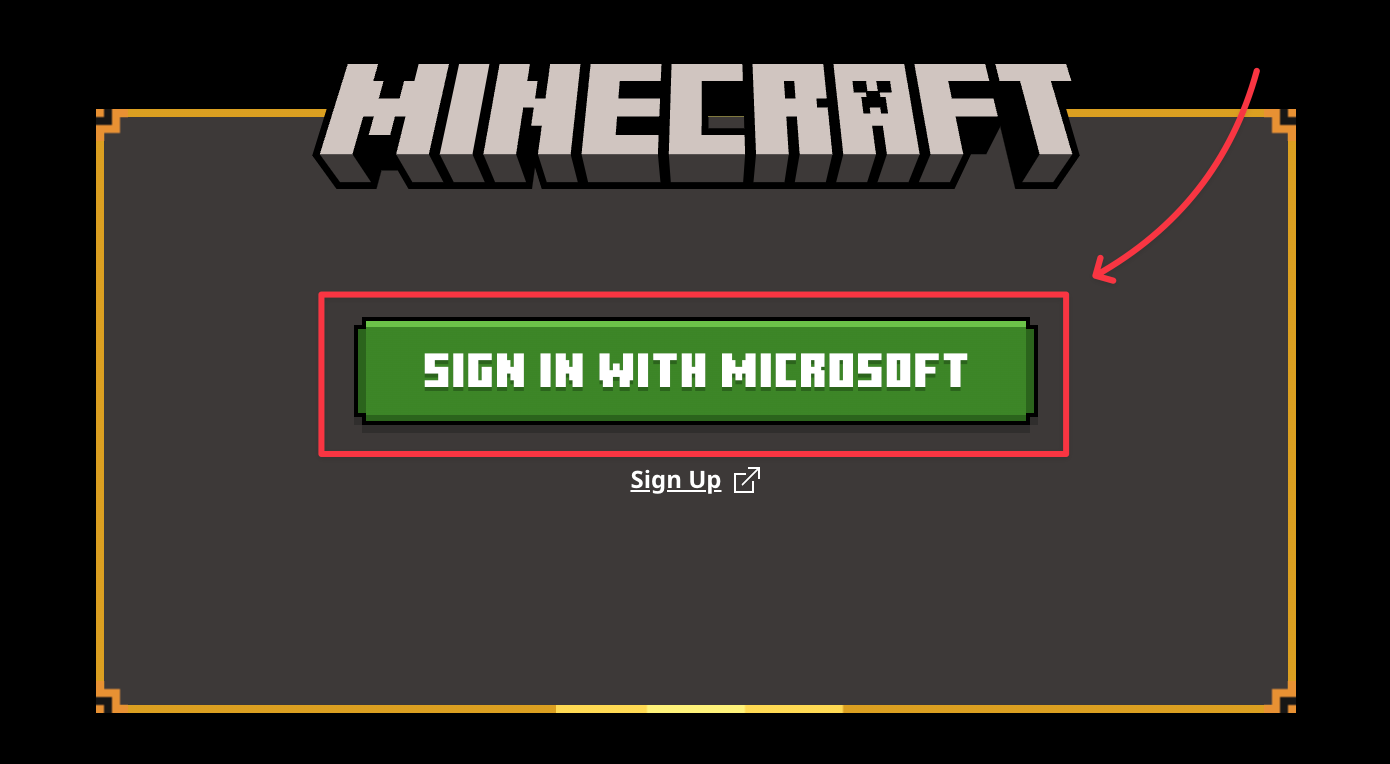
Step 1: Start the Login
On the start screen, you will see a large green button.
- Click on "MICROSOFT LOGIN" (or "SIGN IN WITH MICROSOFT").
Step 2: Enter Data
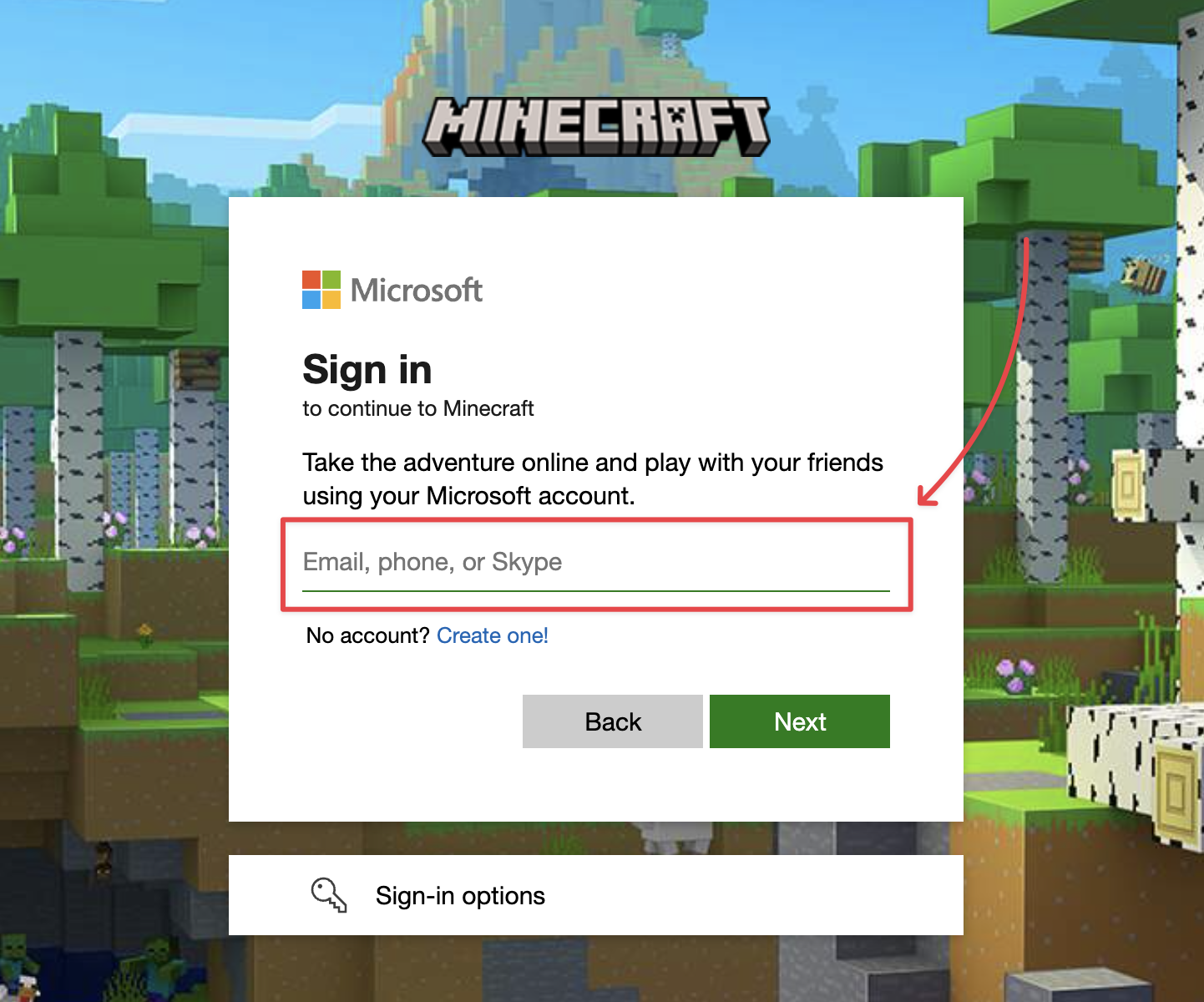
An external Microsoft window opens.
- Copy the Email from the dashboard and paste it into the field. Click "Next".
- Copy the MinecraftPassword and paste it into the password field.
Step 3: Confirm Profile
After entering the data successfully, a screen often appears with the linked Xbox Gamertag ("Welcome back..."). Confirm this step by clicking "Let's go".
Access to the launcher is now unlocked, and you can start the game.
3. Troubleshooting
If the login does not work or access is restricted, it is usually due to one of the following causes:
Error A: "Play Demo" or "Buy Now" displayed
You are logged in, but you do not have access to the full version.
- Cause: Windows often logs you in automatically with a previously saved account (e.g., school, university, or private Outlook account) that does not own a Minecraft license.
- Solution:
- Click on the profile icon in the top left of the Launcher -> "Logout".
- Click the green "MICROSOFT LOGIN" button again.
- In the Microsoft window, use the option "Switch Account" or "Use another account" and explicitly enter the PremiumAlts data.
Error B: "Invalid Password / Wrong Data"
This is almost always due to a copy-paste error or using the wrong password.
- Check: Ensure you are really using the MinecraftPassword (and not accidentally the EmailPassword).
- Spaces: Make sure no trailing space was selected when copying. Ideally, use the copy function (icon) directly in the dashboard to rule out typos.
Error C: Security Code Required
Microsoft requests a code sent to the email address for confirmation.
- Solution:
- Check the EmailProvider field in the dashboard (e.g.,
firstmail.ltd). - Go to that website and log in there with Email and EmailPassword.
- Search the inbox for the code from Microsoft.
- Check the EmailProvider field in the dashboard (e.g.,
4. Important Security Instructions
To ensure the longevity of your account, please strictly adhere to the following guidelines:
🚫 Warning: NO Contact with Manufacturer Support
Never contact official Microsoft or Mojang support regarding problems.
- Since the account has changed ownership, an inquiry to official support usually leads to the immediate, permanent banning of the account. Our PremiumAlts Support is responsible for all concerns.
🔒 Changes to the Account
- Our Advice: Do not change security-relevant data (Email, Password) immediately after the first login. Wait a few days.
- Usage: Use the account for a few gaming sessions first. Immediate changes after a location change are often flagged as "hacking attempts" and lead to a ban.
Have more questions?
Our Live Chat Support is available for you 24/7. Feel free to contact us anytime or check out our other guides.