Login to Your Fortnite Account: Step-by-Step Guide
Step-by-step instructions: How to log in to your purchased Fortnite account, correctly link your console, and solve login issues
Bought a new Fortnite account from PremiumAlts and want to jump right into the game? In this guide, we’ll show you exactly how to log in successfully, link your console, and what to do if you run into any issues.
[VIDEO PLACEHOLDER] (Click + in Ghost and select "YouTube" to insert your video here. Otherwise, delete this placeholder.)Preparation: Understanding Your Access Data
After your purchase, you will find a box labeled "DEINE ACCOUNT DATEN" (Your Account Data) in your dashboard. All login details are listed there separately to avoid confusion.
Here is what each field means:
- Email: This is your login email for Epic Games.
- EpicPassword: This is your password for the game (Epic Games).
- EmailPassword: This is the password for the email inbox (needed for verification codes).
- EmailProvider: This tells you which website to go to for logging into the email (e.g., outlook.com).
Important: Do not confuse the passwords! To start playing, you only need the Email and EpicPassword at first.
Guide: How to Log In to Epic Games
To use the account, you must log in directly via the Epic Games Launcher or the website. Follow these steps:
1. Visit the Login Page Go to the official Epic Games Login Page.
2. Choose the Right Option Click on the option "Sign in with Epic Games".
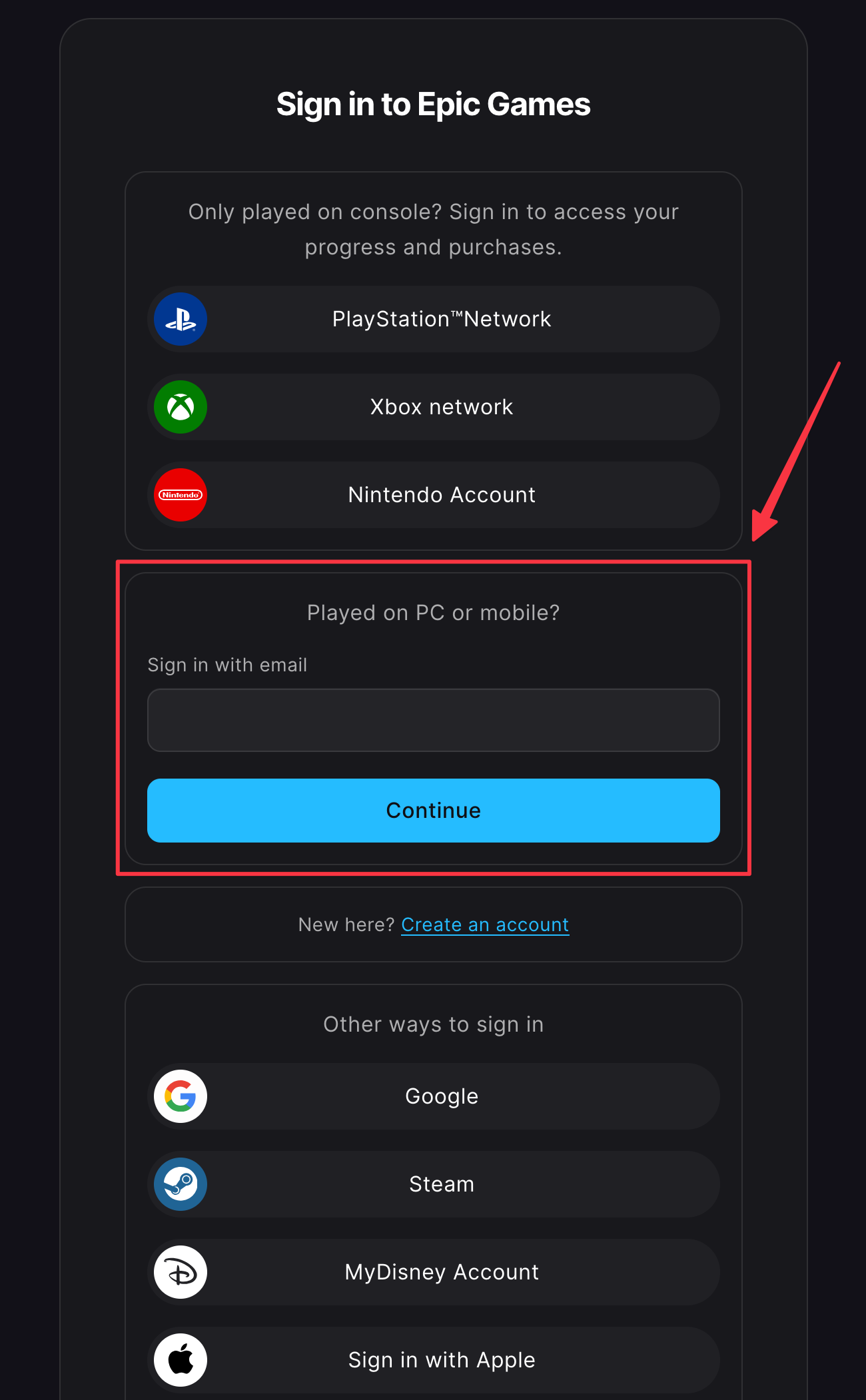
3. Enter Data Now copy the data from your dashboard:
- Paste your Email into the top field.
- Paste your EpicPassword into the password field.
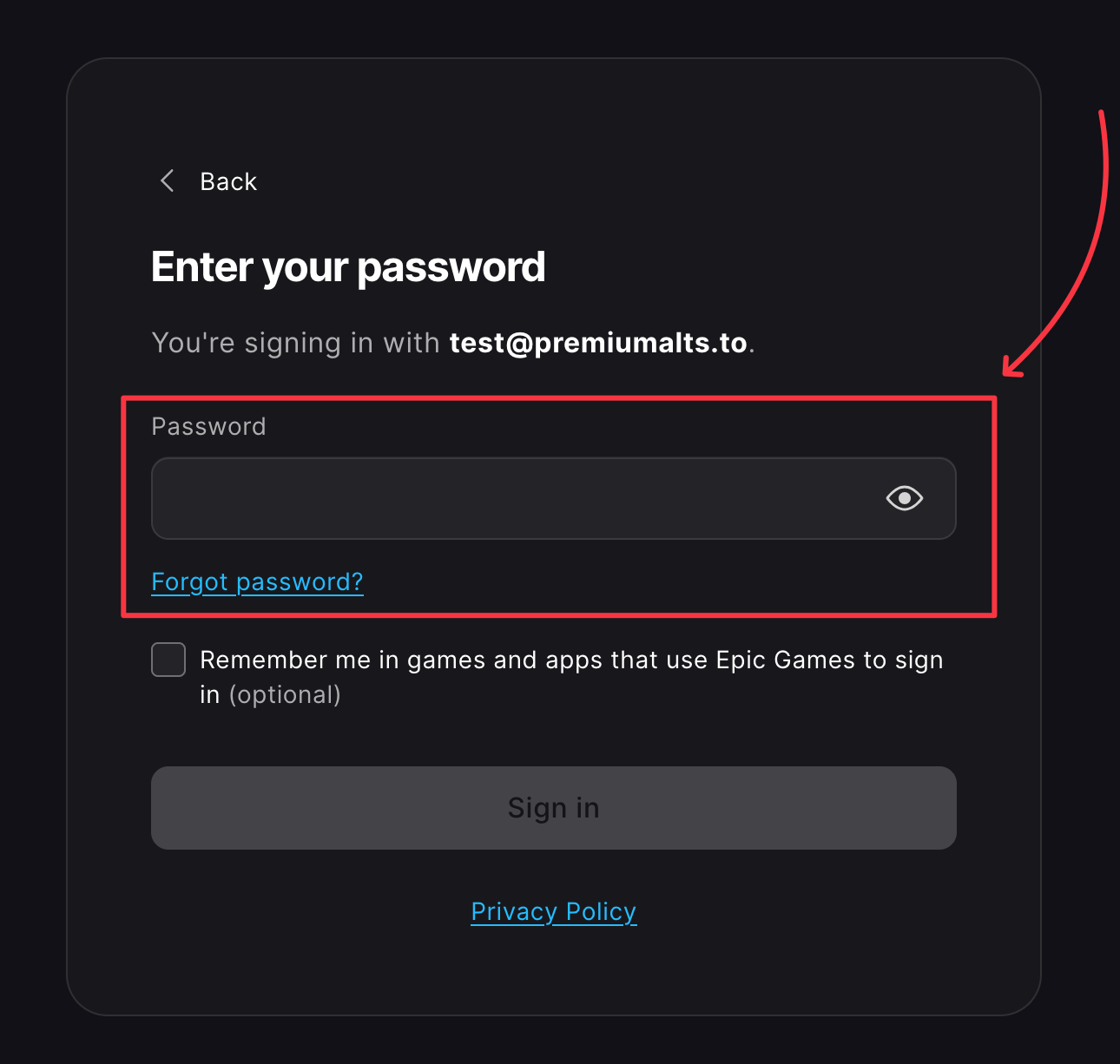
4. Confirm Click on "Log In Now".
Pro Tip: Always use the copy function (the small file icon next to the data in your dashboard) to avoid typos.
Guide for Console Players (PS4, PS5, Xbox, Switch)
If you play on a console, you must first link the new Epic Games account. There is one crucial rule to avoid error messages.
⚠️ Important Requirement: Your console account (PSN, Xbox Live, Nintendo) must not already be linked to another Epic Games account.Have you played Fortnite on your current profile before? Then there is likely already a "nameless" Epic account linked in the background.The Solution: Ideally, create a new user profile directly on your console. Use this fresh profile to link the purchased account.
How to link the account correctly:
- Log in to the Epic Games website on your PC or phone first (as described above).
- Go to the settings and select the "Apps and Accounts" tab.
- Under "Accounts", choose your platform (e.g., PlayStation Network or Xbox Live) and click "Connect".
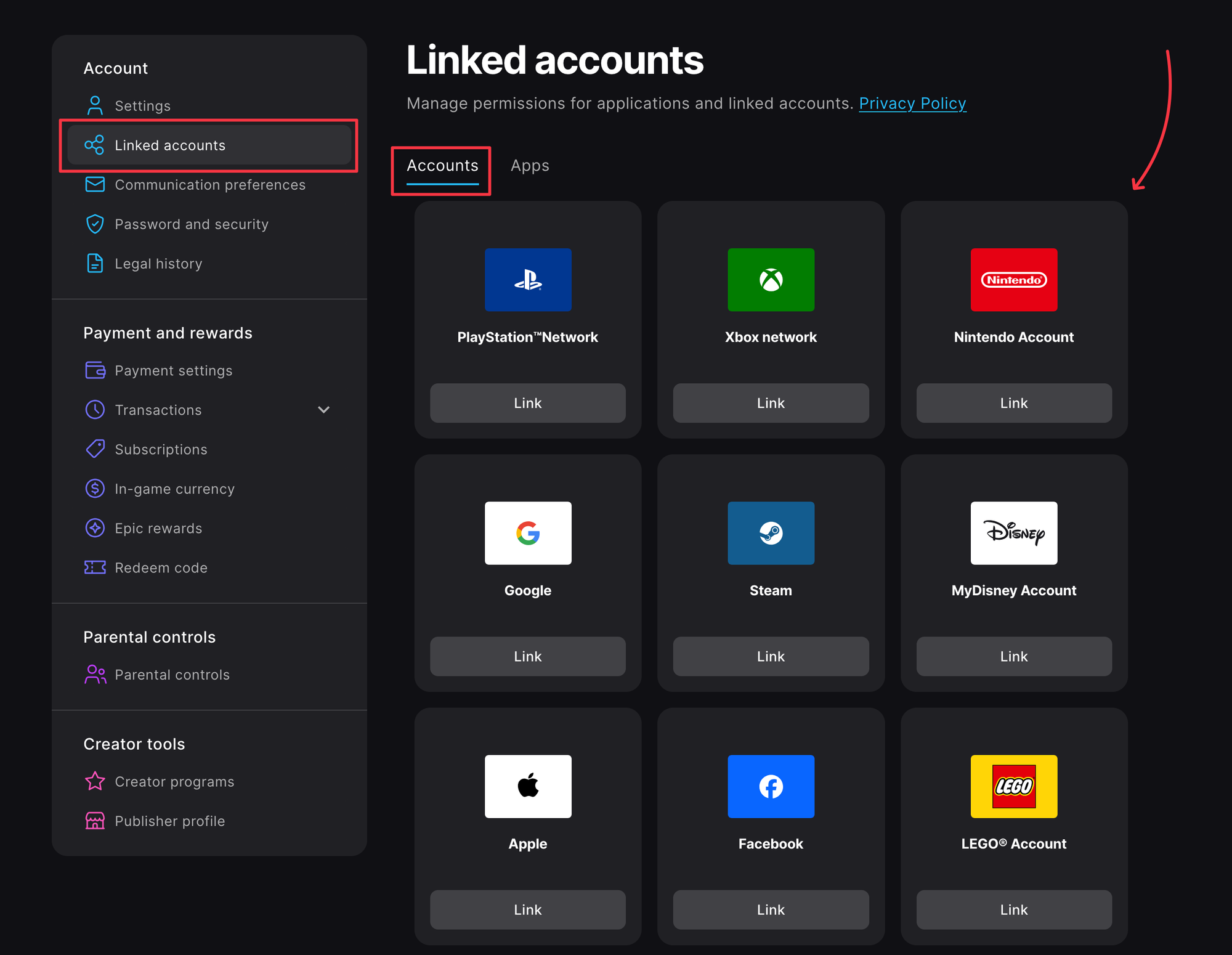
- Follow the instructions in the pop-up window to sign in with your (ideally new) console profile data.
Common Login Problems (Troubleshooting)
Not working right away? Don't worry, here are the solutions for the most common cases:
1. Error Message: "Invalid Credentials"
In 90% of cases, the wrong password was copied, or a hidden space crept in.
- Make sure you are really using the EpicPassword (not the EmailPassword!).
- Clear the fields completely and copy the data again using the small icon in your dashboard.
2. Verification Code (2FA) Required
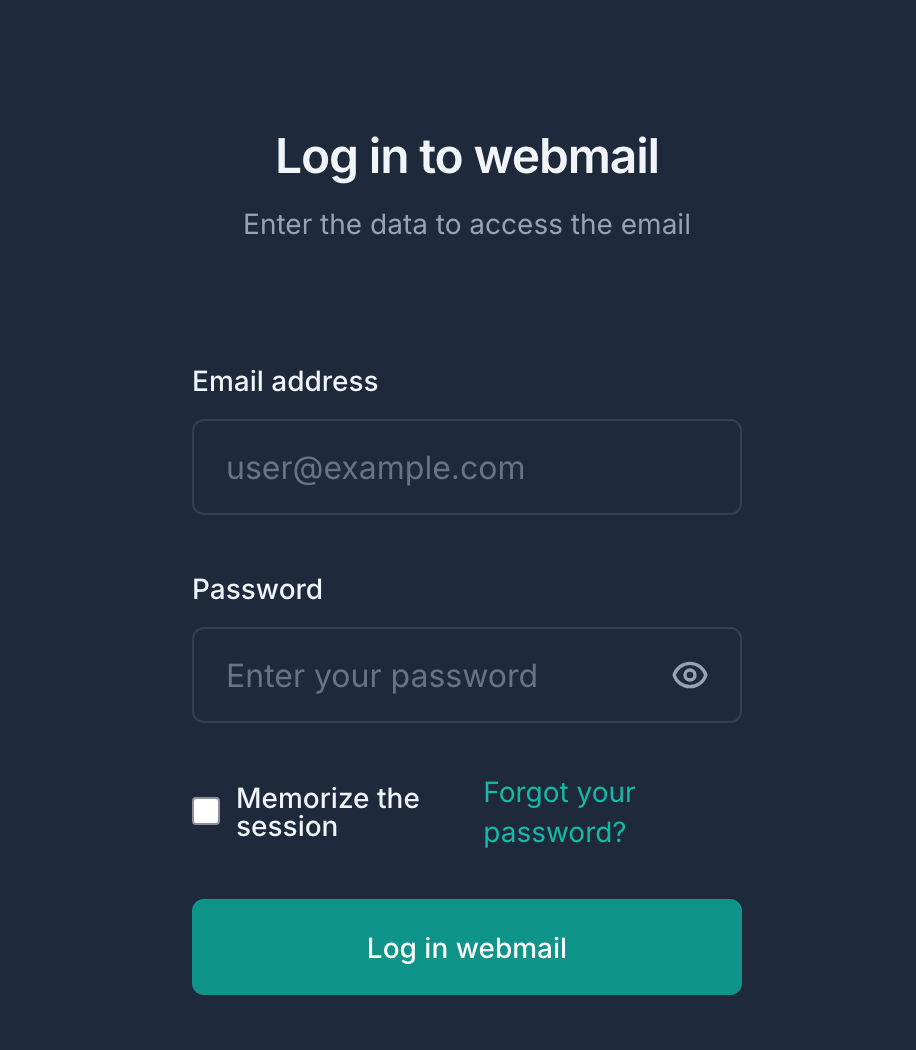
If the account is protected by Two-Factor Authentication (2FA), a code has been sent to the linked email address. You now need the email data:
- Check EmailProvider in your dashboard to see where the inbox is located (e.g.,
outlook.comormail.ru). - Go to that website and log in there.
- Use the Email and EmailPassword from your dashboard.
- Search the inbox for the email from Epic Games containing the code.
3. Account appears "Inactive"
In very rare cases, an account might be locked. If this happens immediately after purchase, please contact our support immediately so we can provide a replacement.
Security Warnings & Rules
To enjoy your new account for a long time, please strictly follow these two rules:
🚫 Important: NEVER Contact Epic Games Support
Please address any questions or issues exclusively to our PremiumAlts Support.
- The Reason: If you contact official Epic Support, they often manually review the account. Since the location (IP address) changed due to the purchase, Epic often flags this as a security risk and permanently bans the account.
- We can help you with almost any issue without endangering the account.
🔒 Waiting Period for Changes
Do not immediately change all data (Email and Password) right after the first login. This can also trigger automatic security mechanisms.
- Our Advice: Play a few matches first before you start changing profile details.
Have more questions? Feel free to create a ticket in our support area or check out our other guides.